Jobnet
Unemployed
Guide
Register as unemployed on jobnet.dk
If you are unemployed and a member of an A-kasse, you can apply for unemployment benefits. You can receive unemployment benefits at the earliest from the day you are registered as unemployed on Jobnet.dk.
Log in to jobnet.dk with MitID.
You can use Jobnet.dk to find a job, but if you want to use Jobnet.dk's other functions, you must log in (with MitID).
If you can not use jobnet.dk, you can go to your local Jobcenter/kommune and register as unemployed.
After you have registered as unemployed (by following the next steps) you must then remember to create or update your CV and register your job search in the so-called "Joblog".
Register as unemployed
When you are logged in to Jobnet, go to the menu item "Mit Jobnet" and select the page "Tilmed og afmeld", where you can register as unemployed. You can also go directly to the page from the Jobnet homepage by selecting the button "Meld dig ledig" and logging in with MitID.
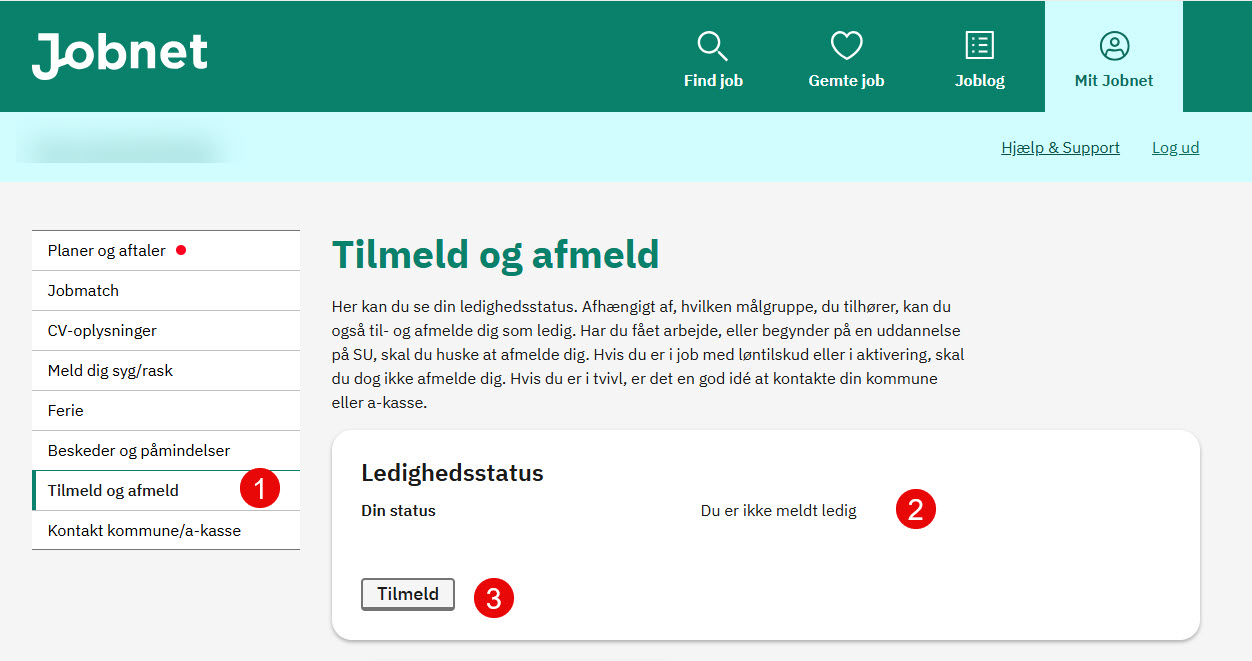
1. After logging in to Jobnet.dk, you can register as unemployed on the "Tilmeld og afmeld" page
2. "Din status", where you can see whether you are registered as unemployed or not.
3. To register as unemployed, start by clicking "Tilmeld". In the following steps, you must provide a number of information.
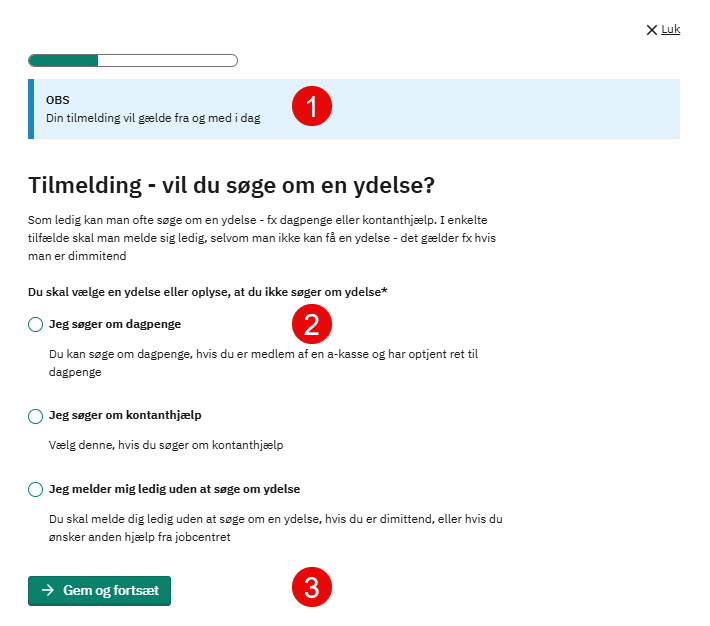
1. Please note that your registration will be valid from today.
2. At this step, select "Jeg søger om dagpenge".
3. You can proceed by clicking on the green button "Gem og fortsæt".
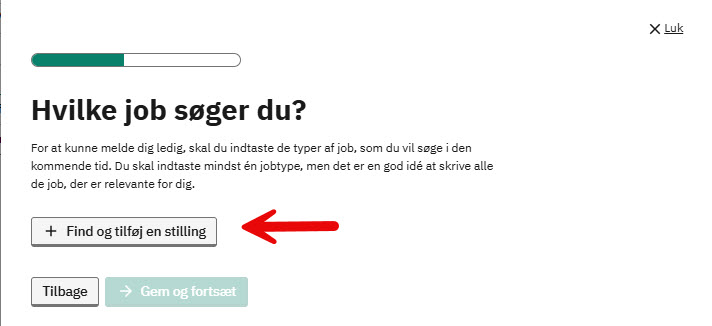
If you have previously been registered as unemployed or have already filled out your CV on Jobnet, you will not see this step, but will go directly to the summary.
In this step, you must enter a job title. Click on "+Find og tilføj en stilling".
As a rule, you should choose job titles within areas that you have experience with or education in. When employers are looking for workers, they often search for job titles combined with information about education and/or experience.
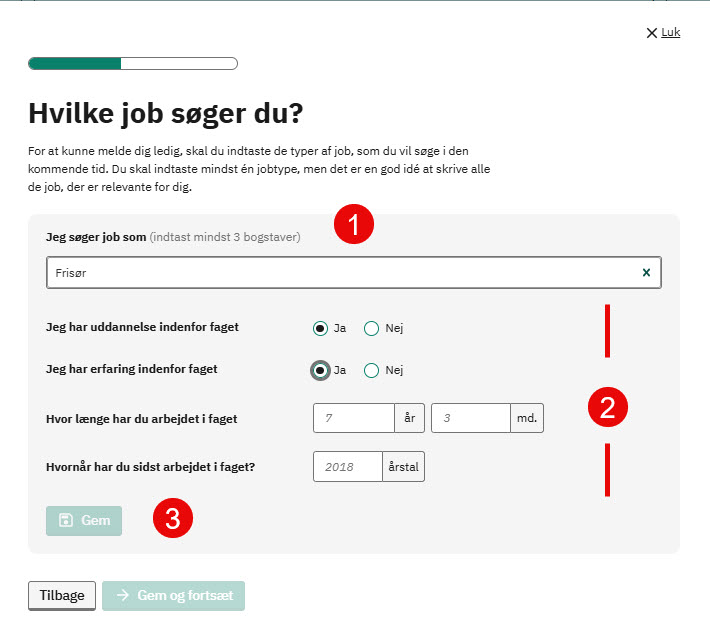
1. Start by typing a job title in the "Jeg søger job som" field. Once you have typed at least three characters, a list of job titles that match what you have typed will appear.
2. You must answer ("Ja" or "Nej") "Yes" or "No" to whether you have an education in the subject.
You must also answer ("Ja" or "Nej") "Yes" or "No" to whether you have experience in the subject.
If you answer ("Ja") "Yes" to having experience, additional fields will be displayed where you must state how many years and months of experience you have within the subject.
You must enter the year when you last worked in the subject.
3. The ("Gem") "Save" button will become available when the required fields are filled in.
After clicking ("Gem") "Save", the saved position step will be displayed. You can then add another position, delete the one you created, or click ("Gem og fortsæt") "Save and continue".
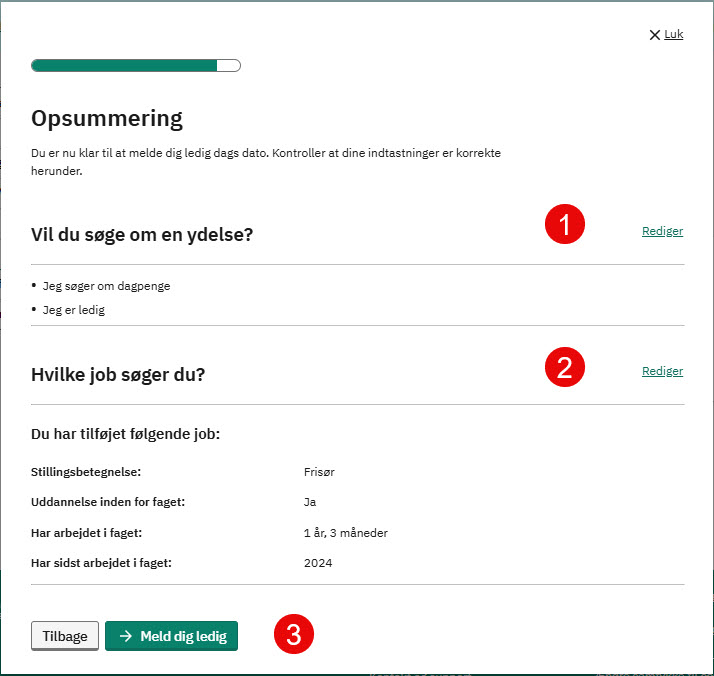
Finally, you will see the information you have entered on the previous pages.
1. Shows the benefit you have applied for. You can change it by clicking ("Rediger) "Edit".
2. Shows the jobs you have specified. You can change these by clicking ("Rediger) "Edit".
3. When all the information is correct, click on the green button ("Meld dig ledig") "Register as unemployed". At the same time as your information is saved, your municipality and your unemployment insurance fund ("A-kasse") will be notified that you have registered as unemployed.
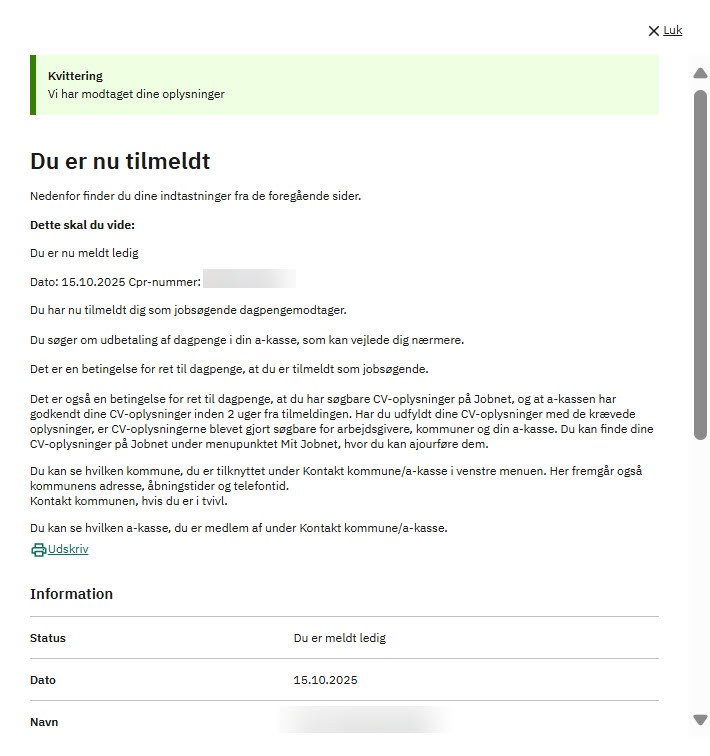
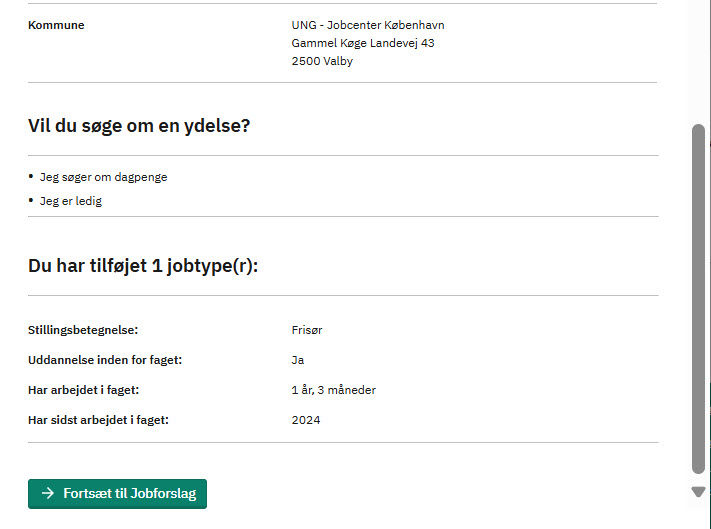
Now you have gone through all the points and you have registered as unemployed. Jobnet shows you a receipt for registration.
It is important that you read the receipt carefully, as several of the information are about the requirements that are placed on you while you are unemployed.
You have the option to print the receipt via the ("Udskriv") "Print" link and you will also receive a receipt in your message box on Jobnet.
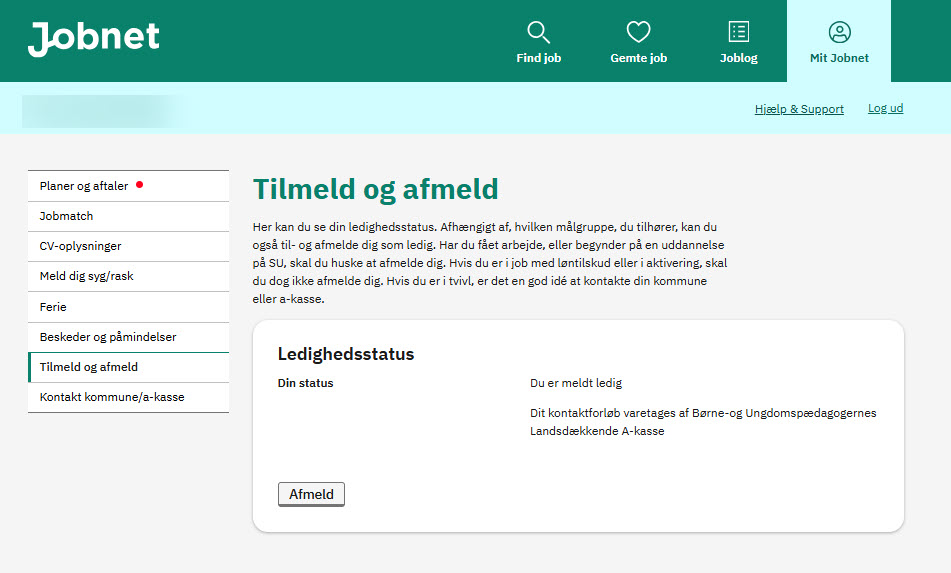
After you have registered as unemployed, your status will have changed. You will see that you have registered as unemployed and if your contact process is handled by your unemployment insurance fund ("A-kasse"), this will appear as shown below:
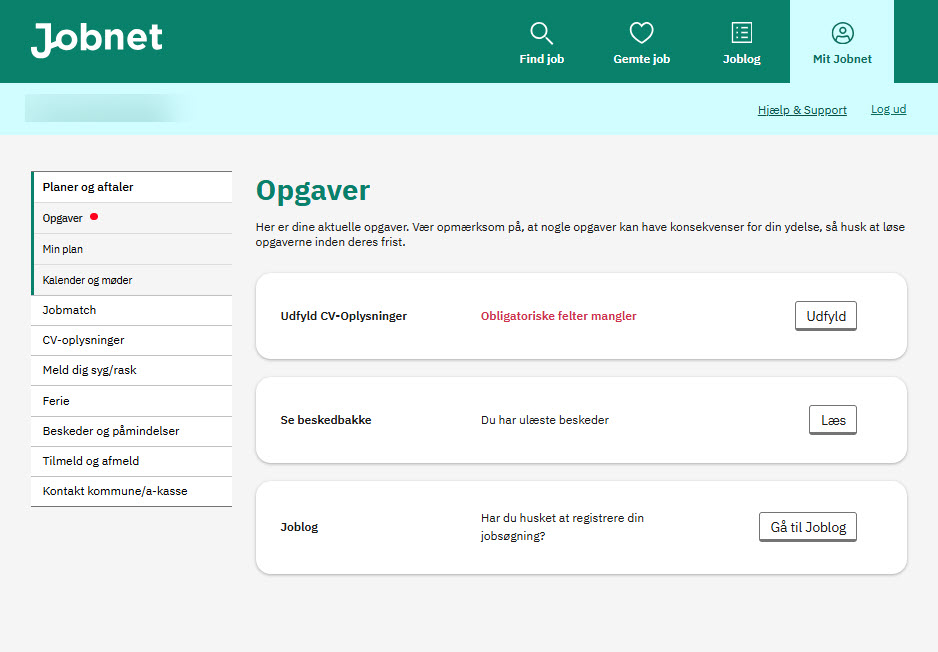
On the ("Opgaver") "Tasks" page you will see the tasks you need to perform when you are registered as unemployed.